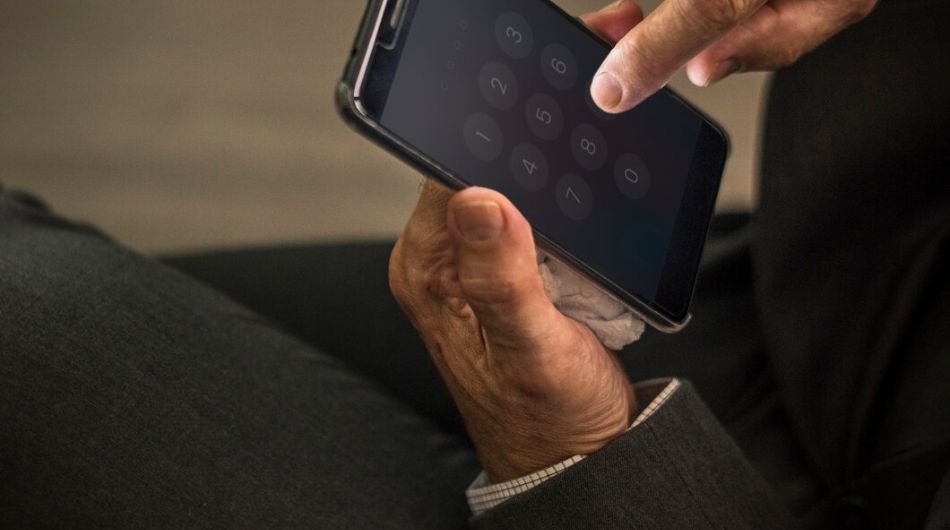
Getting locked out of your Android phone can feel stressful, especially when you rely on it for everything from communication to important data. Whether you forgot your PIN, pattern, or password, or your phone is facing a system glitch, being unable to access your device is a frustrating experience. Unfortunately, with modern Android security becoming stricter, bypassing a lock screen isn’t as easy as it used to be. In most cases, a factory reset becomes the only reliable solution.
A locked phone doesn’t always mean it’s broken. Sometimes it’s just a security feature doing its job too well. However, when you can’t regain access, resetting the device helps you start fresh and regain control. While this process removes your lock screen, it also wipes all your personal data, apps, photos, accounts, and settings, bringing the phone back to its original state.
The good news is that resetting a locked Android phone is possible using a few proven methods. Whether you use hardware buttons or remote tools like Google’s Find My Device, you can unlock your phone without needing prior access. That said, it’s important to understand what happens during a reset, how to prepare for it, and how to avoid data loss.
In this guide, we’ll walk you through everything you need to know from what a reset actually does to step-by-step instructions and essential precautions.
What Does Resetting Your Phone Do?
A factory reset completely erases your phone’s data and restores it to default settings. This includes:
- Deleting all apps, accounts, and saved passwords
- Removing photos, videos, and files stored internally
- Resetting system settings and preferences
- Clearing bugs, glitches, or corrupted data
In simple terms, your phone becomes like a brand-new device.
Things to Keep in Mind Before Resetting
- A reset will permanently delete all data
- You’ll need your Google account to set up the phone again
- Factory Reset Protection (FRP) may require previous credentials
Ensure your phone has enough battery before starting
Steps to Reset a Locked Android Phone
Method 1: Using Recovery Mode (Hardware Buttons)
- Turn off your phone completely
- Press and hold Power + Volume Up/Down (varies by device)
- Enter the Recovery Mode menu
- Use volume buttons to select Wipe Data/Factory Reset
- Press the ‘Yes’ t’Yes’ower button to confirm
- Select Yes to proceed
- Choose Reboot System Now after completion
Method 2: Using Google Find My Device
- Visit android.com/find on another device
- Log in with your Google account
- Select your locked phone
- Click Erase Device
- Confirm the reset
This method works only if your phone is connected to the internet.
Why Sometimes Reset Fails
In some cases, a reset may not work properly due to:
- Software corruption or system errors
- Damaged hardware buttons
- Recovery mode not loading correctly
- Internet issues (for remote reset)
If this happens, professional service support may be required.
Importance of Backup to Keep Data
Backing up your data is crucial because once a reset is done, recovery is nearly impossible. Without backup, you risk losing the following:
- Personal photos and videos
- Contacts and messages
- App data and documents
A proper backup ensures you can restore your phone easily after resetting.
Backup Checklist
- Enable Google Backup in Settings
- Sync contacts and calendar
- Upload photos to Google Photos or cloud storage
- Save important files to SD card or computer
- Note down important passwords or use a password manager
- Verify backup status before resetting
Getting locked out of your Android phone is frustrating, but a factory reset can help you regain access. While it’s an effective solution, it erases all your data, making backups essential. By regularly saving your data and keeping account details updated, you can avoid major losses. In the end, staying prepared ensures that even if you’re locked out, you can recover quickly and easily.